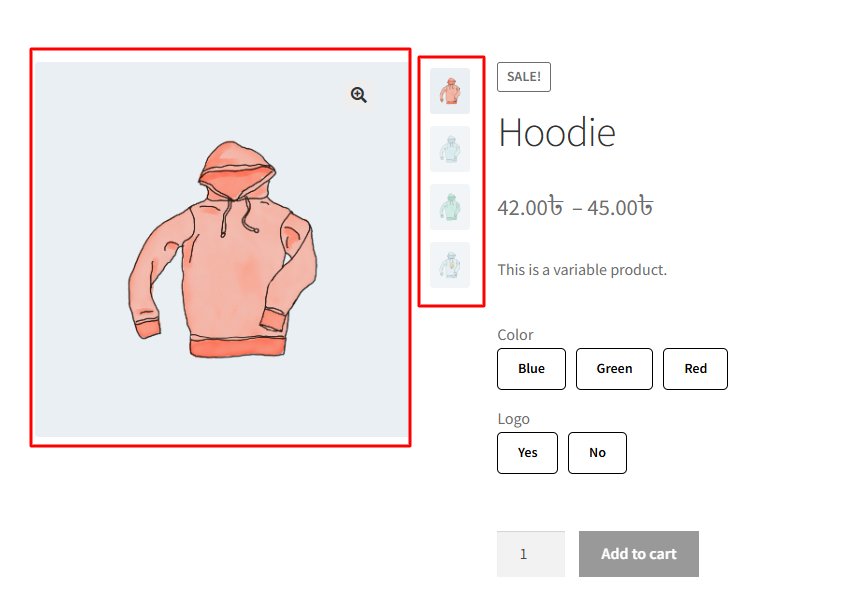
By enabling the Variation Gallery option in the Variation Monster plugin, you can showcase multiple images for each product variation on the single product page. This feature enhances the visual experience for customers by allowing them to view a custom image gallery specific to the selected variation (e.g., color or size). Once enabled, additional configuration options become available, such as selecting gallery templates, adjusting image sizes, and customizing navigation button styles to match your store’s design.
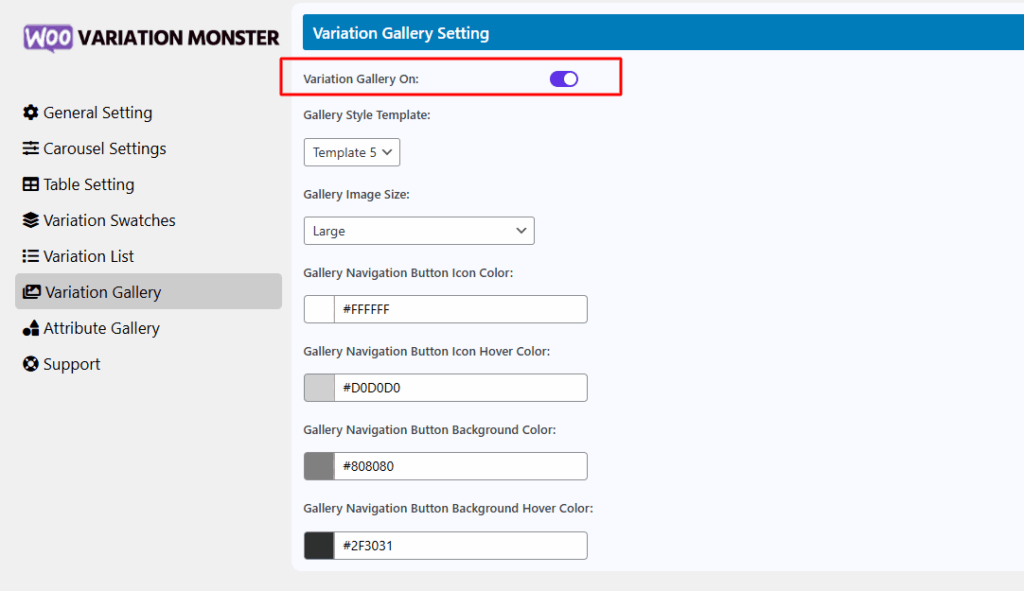
After enabling it, go to the product meta data panel, click on the Variations tab, then select the variation for which you want to display an image gallery. Attach all the images you want to show for that specific variation.
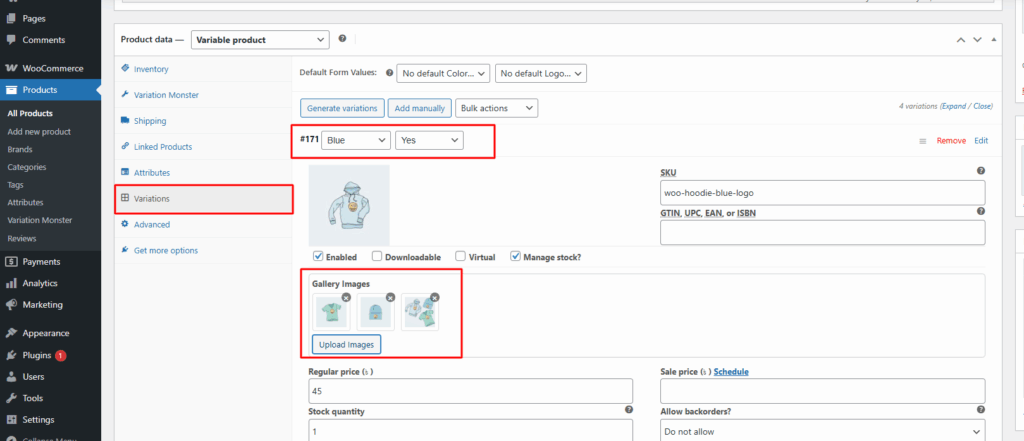
After attach all images then, it shows like the image below.